OpenClaw needs a long-term and stable “home”. This “home” cannot be your main computer—after all, you still need to use the computer for work and entertainment. Nor can it be a completely uncontrollable cloud—data privacy and ongoing costs are both issues.
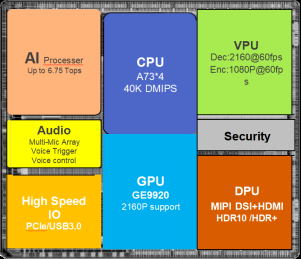
VS680 SoC is a powerful edge computing tool designed specifically for such scenarios:
-
Built - in edge - side computing power without occupying the main device: The VS680 integrates a high - performance NPU, supporting up to 6.75 TOPS of computing power. This means that OpenClaw can schedule edge computing inference tasks, such as voice wake - up, voice recognition, and visual recognition, on independent edge devices. At the same time, it can also call on the capabilities of large cloud models without affecting the performance of your main computer, leveraging the advantages of the edge - cloud collaborative architecture.
-
24 - hour silent operation: It is equipped with a quad - core Arm® Cortex® - A73 processor with a maximum clock speed of 2.1 GHz. It features excellent power consumption control, allowing it to run continuously in the background for a long time without the need to worry about turning it on and off or excessive power consumption and heat generation.
-
Out - of - the - box and easy to deploy: It can be easily connected to IM applications such as WeCom and Feishu for user interaction. In addition, its rich interfaces (HDMI, USB, PCIe, Gigabit Ethernet) enable the VS680 to seamlessly integrate into your work environment. Simply plug it in and connect to the network, and it becomes your private AI assistant. Apart from having edge - side AI capabilities like voice and visual recognition, it also has the ability to collaborate over the network and connect to thousands of skills in the OpenClaw ecosystem, making it a real - deal AI work companion.
example :BPI-M6 VS680 with OpenClaw:
- Install npm
apt update && apt install -y libvips-dev build-essential
curl -fsSL https://deb.nodesource.com/setup_22.x | sudo -E bash -
sudo apt-get install -y nodejs
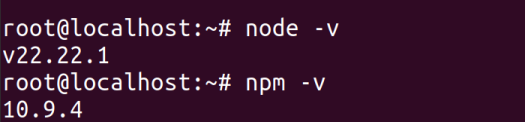
The prompt for successful installation is as follows:
- Install OpenClaw
npm install -g openclaw --verbose
After the installation is successful, the following prompt will appear:

- Configure large model
openclaw configure
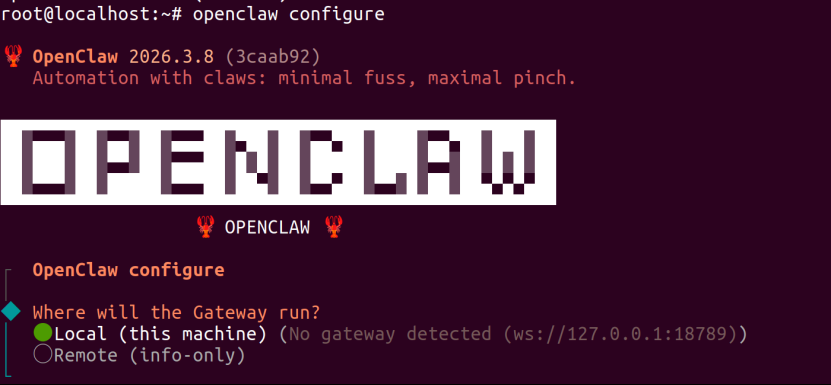
select local - model
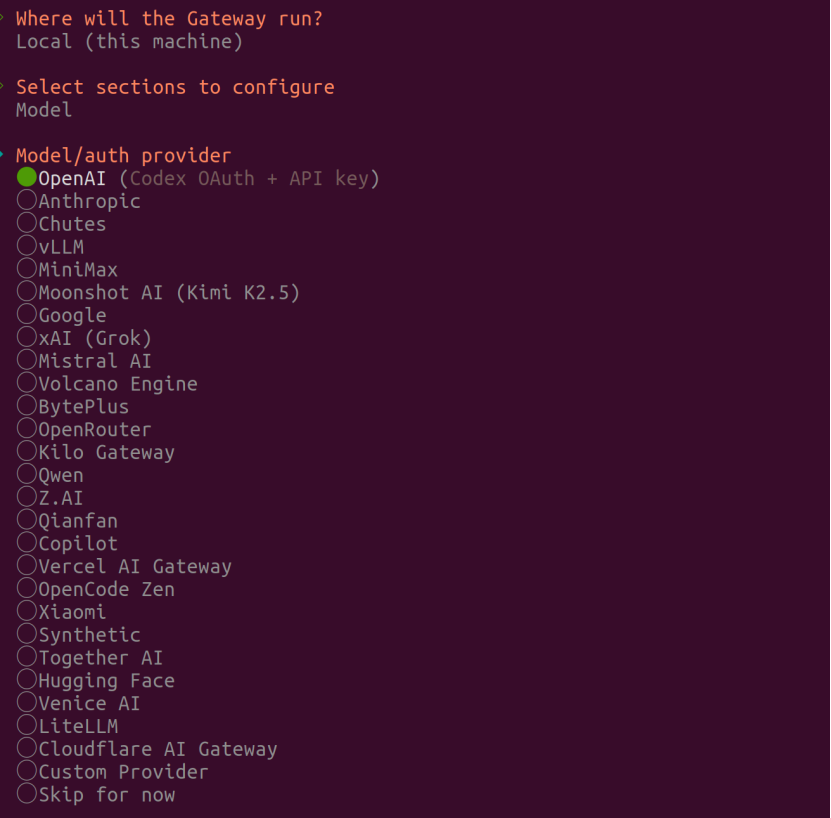
Various large model options will pop up. Select according to the large model providers you have subscribed to. I have configured the Doubao large model from ByteDance myself. Since it is not among the large model providers listed above, I choose “custom provider”. Next, taking the connection to ByteDance’s large model as an example, fill in the API base URL and the corresponding API KEY.
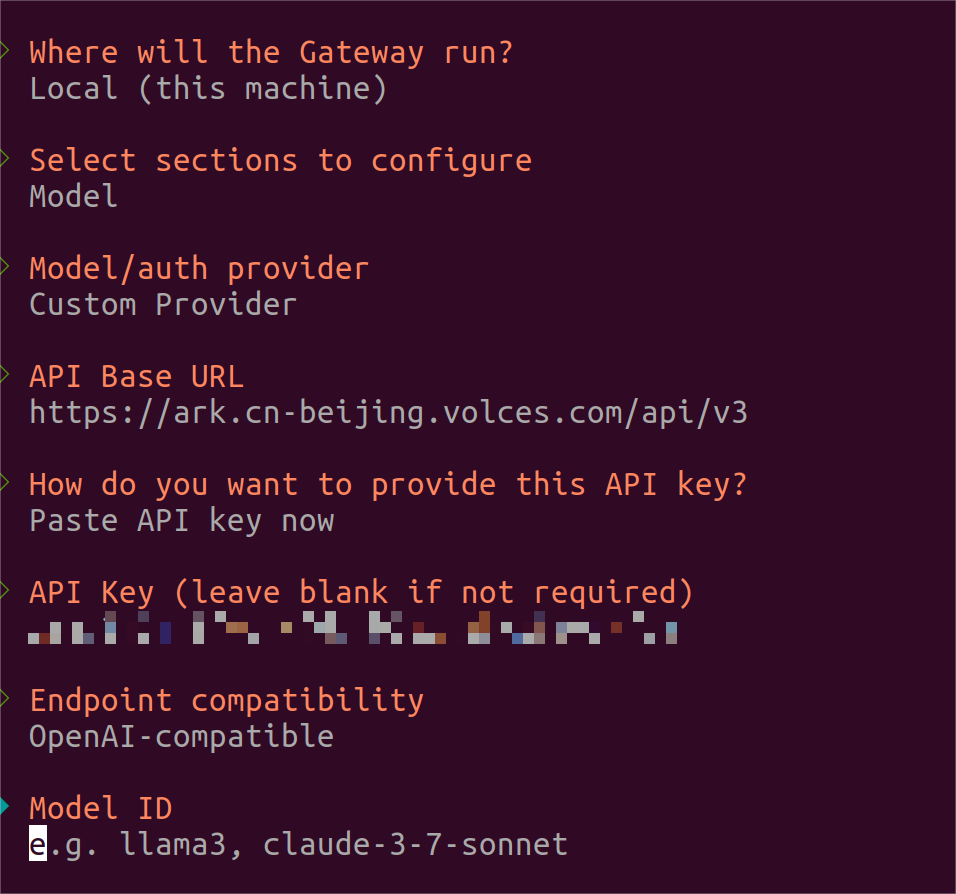
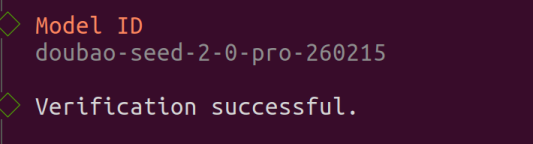
Fill in according to the model ID you have actually activated. The one I’ve activated here is doubao-seed-2-0-pro-260215. Then OpenClaw will conduct verification.
After that, you will be required to enter the Endpoint ID and Model alias (optional), which can be filled in customarily. At this point, the configuration of the large model is completed.
- Other configurations
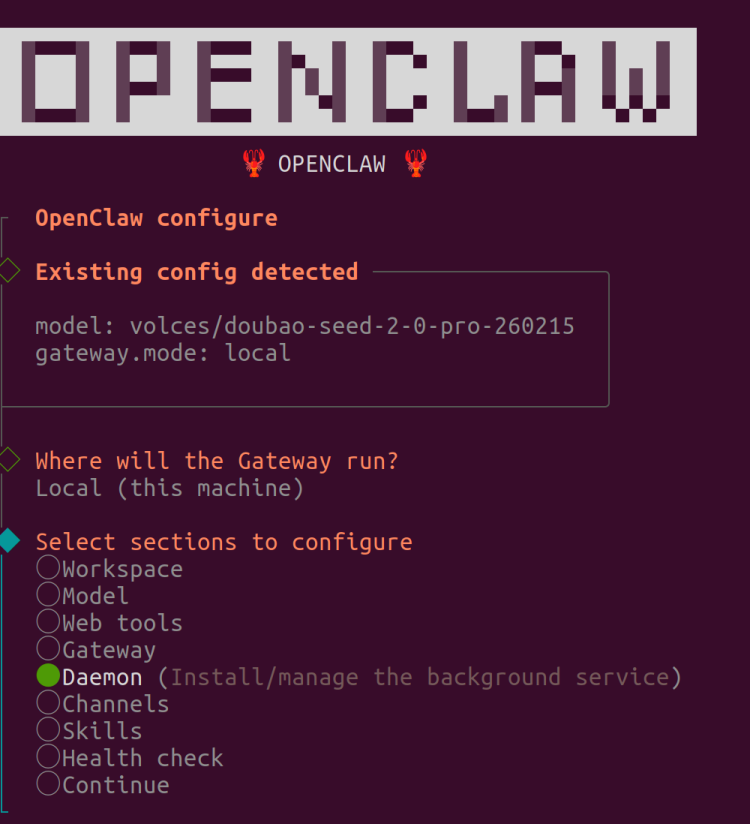
After configuring the large model, you will return to the main menu interface. You can configure settings such as skills and channels according to your own usage scenarios. Openclaw has 50 built-in skills. The configured skills can be viewed in the skills option in the left sidebar of the Openclaw UI interface. Regarding channels, interaction with Openclaw is achieved through communication apps. The supported channels are as follows:
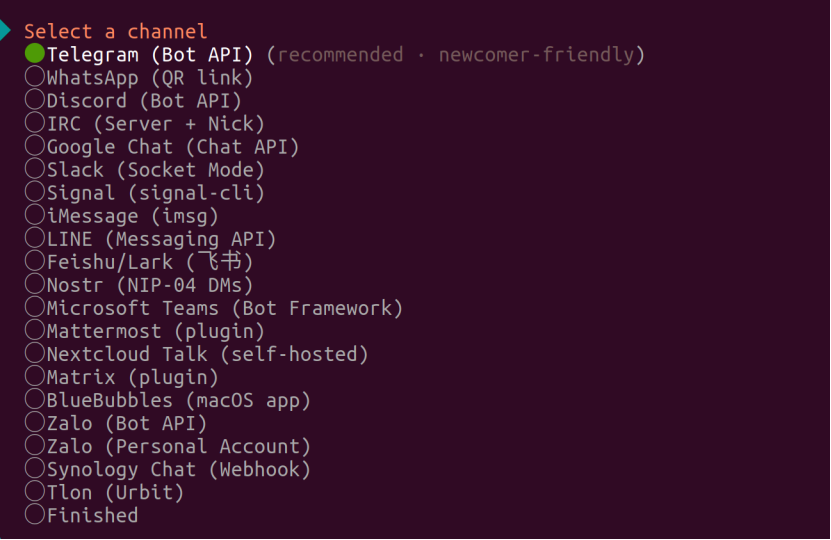
I tried using WhatsApp, but due to VPN issues, I was unable to obtain the login QR code. Later, I chose Telegram. Whether it’s WhatsApp or Telegram, both require a VPN to use. Most of the above communication apps require a VPN to function.
The configuration for Telegram is a bit cumbersome, so I won’t go into too much detail here. When registering for Telegram, if you use a domestic mobile phone number, you need to pay a registration fee of $1.19. If it’s a foreign account, there’s no such fee. I used a British virtual account myself. You can purchase virtual accounts through this website: https://hero-sms.com/cn/services. After activating Telegram, pair Telegram with OpenClaw via the key. Then you can interact with OpenClaw through the Telegram chat window.
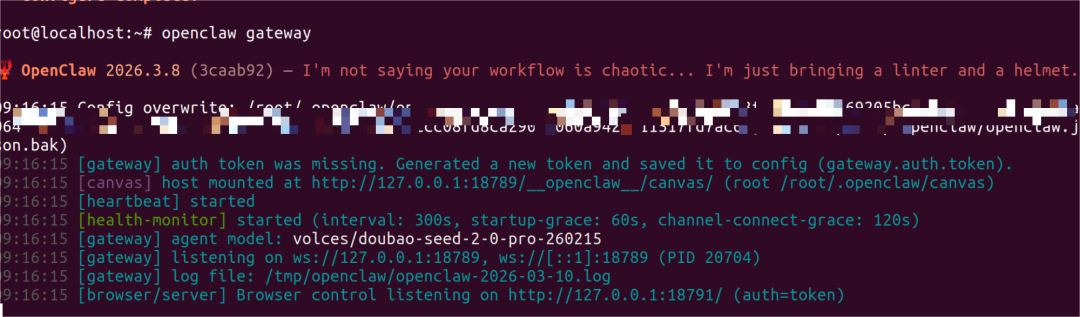
- Start OpenClaw. After configuring OpenClaw, the next step is to start it. Enter “OpenClaw gateway”.
Then enter “openclaw dashboard” in another terminal.
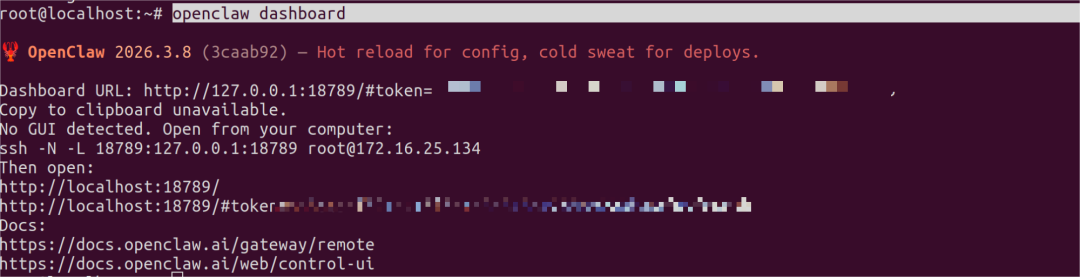
Click on the pop-up link to open the UI interface of OpenClaw. After that, you can interact with OpenClaw in the chat option of the UI interface.