Under System >> Administration >> HTTP(S) Access tab, if you’ve enabled Redirect to HTTPS, you’ve likely seen the red-text warning and the red, crossed-out https:// which makes you wonder whether you’re actually connecting via HTTPS.
Let’s fix that.
First, under System >> Administration >> HTTP(S) Access tab, disable Redirect to HTTPS. We’ll re-enable it after we get everything set up.
Then click Save & Apply.
Issue:
vi /etc/ssl/myconfig.conf
… press i to enter editing mode, then input:
[req]
distinguished_name  = req_distinguished_name
x509_extensions     = v3_req
prompt              = no
string_mask         = utf8only

[req_distinguished_name]
C                   = US
ST                  = TX
L                   = SomeCity
O                   = OpenWrt
OU                  = Home Router
CN                  = openwrt.lan

[v3_req]
keyUsage            = digitalSignature, keyEncipherment
extendedKeyUsage    = serverAuth
subjectAltName      = @alt_names
basicConstraints    = CA:TRUE

[alt_names]
DNS.1               = openwrt.lan
IP.1                = "192.168.1.1"
… change C (country) and ST (state) to suit you… press Esc to exit editing mode, then press :wq to save and exit.
Issue:
cd /etc/ssl

openssl req -x509 -nodes -days 3650 -newkey rsa:2048 -config myconfig.conf -keyout luci.key -out luci.crt -reqexts v3_req -extensions v3_req
That will put luci.crt and luci.key under /etc/ssl.
Issue:
vi /etc/config/uhttpd
… press i to enter editing mode, then change the existing code to the following:
option cert '/etc/ssl/luci.crt'
option key '/etc/ssl/luci.key'
… press Esc to exit editing mode, then :wq to save and exit.
Issue:
/etc/init.d/uhttpd restart
Issue:
cat /etc/ssl/luci.crt
Copy and paste the entirety of that file, including the -----BEGIN CERTIFICATE----- and -----END CERTIFICATE----- blurbs.
Create a blank text file on your computer’s desktop, open that blank text file, and paste what you just copied, then save that text file as luci.crt.
Ok, your router is set up. Now let’s do your browser. Go into the settings, and find the Manage Certificates page (usually under Privacy & Security).
In the browser’s Manage Certificates page, import the luci.crt certificate file which is sitting on your computer’s desktop. You can now delete the luci.crt file sitting on your desktop.
Under System >> Administration >> HTTP(S) Access tab, enable Redirect to HTTPS.
Now navigate to the router via:
https://openwrt.lan
You should see that the connection is no longer flagged as ‘dangerous’ or ‘insecure’.
Now you should be able to just enter:
192.168.1.1
… into the address bar… the router will redirect that to HTTPS, and the browser will link openwrt.lan and 192.168.1.1, and give a green indicator for either.
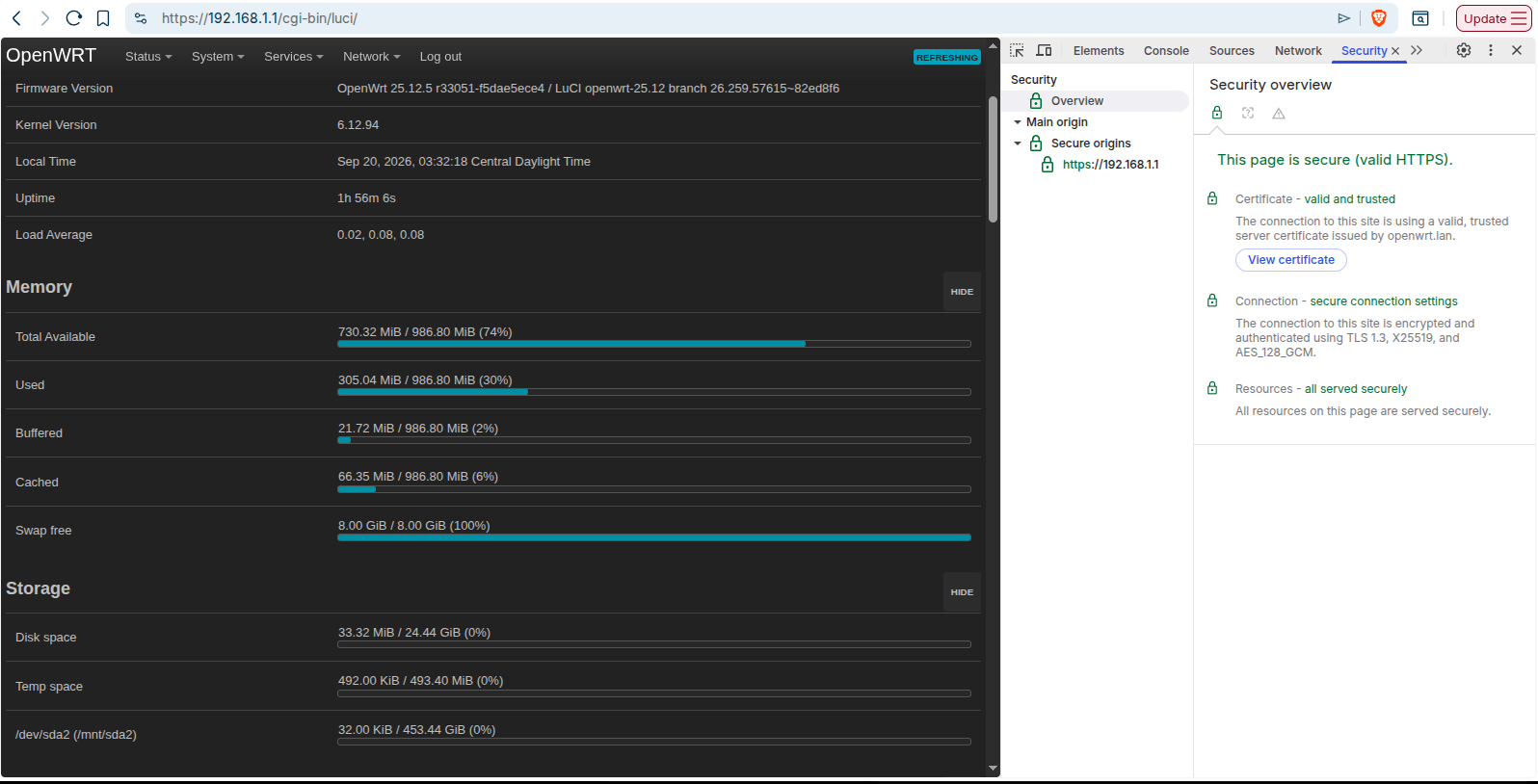
You can right-click the page, select Inspect, then near the top, select the >> double-arrows to show more menu options, and select Security.